03 / Before the battle
Let’s get you set up.
From your first sign-in to your first mod. Four simple steps.
PS4 setup walkthrough
Watch the full PS4 jailbreak activation, then follow the GoldHEN settings and find the local IP address to enter in CUSA+.
CUSA+ app walkthrough
Create your account, download the Windows app, and install your first mods.
Prepare your PS4.
Use a PS4 running the latest firmware (currently 14.02). Put your PS4 and Windows PC on the same local network. Either device can use Wi-Fi or Ethernet.
- On the PS4 home screen, press Options on Battlefront II and choose Close Application if the game is running.
- On the PS4, open its browser and go to cusa.plus/activate. Select Start jailbreak. Wait for GoldHEN to finish and check its notification or menu on the console before continuing.
- Open GoldHEN → Plugin Settings and tick Enable Plugins Loader.
- Go back to the GoldHEN menu, open Servers Settings and tick Enable FTP Server and Enable Payloader Server.
- Open the PS4’s regular Settings → System → System Information. Write down the number beside IP Address. You’ll enter those numbers and dots into CUSA+ in step 4.
Get CUSA+.
- On your Windows PC, choose a CUSA+ pass and sign in on the website.
- Go to Account, download the Windows app and open the downloaded file.
- In the app, open Account → Sign in with your browser. Sign in using the same CUSA+ account, then return to the app.
The installer is currently Windows only. Mac, iPhone and Android support is coming.
Get the appFind your mods.
- In the app’s Mod store, open a mod and choose Add to library. On the website, choose Install in CUSA+ and allow the browser to open the app if prompted.
- Wait for the download. Open Mod library and tick the mods you want to install together.
Connect. Install. Play.
- In CUSA+, open Console & install. Enter the local address from step 1 in PS4 IP here, then click Pair this PS4.
- Check that the app can see your PS4. Review Selected in your library, confirm Battlefront II is fully closed, then click Apply loadout.
- If CUSA+ asks you to open the game briefly to read its files, follow the prompt. Fully close Battlefront II again when prompted before continuing with installation.
- Keep the PC and PS4 connected until CUSA+ finishes verifying the installation, then launch Battlefront II.
Mods take around 5–10 minutes to install on your PS4, depending on your local network speed. CUSA+ transfers the files from your PC to the console over that network.
Your PS4 IP address is a local device address used to reach the console on your network; it does not reveal your location. CUSA+ stores the paired console address in the app data on your Windows PC for connection and installation. Account and app activity checks use the CUSA+ service.
Need a quick answer?
Windows blocked an older CUSA+ release.
Quit CUSA+ from the Windows notification area. Then download the current Windows release. Open the new app. Your mod library and settings are stored with your Windows profile.
The install button doesn’t open CUSA+.
Launch the Windows app once, then try again. If your browser asks to open CUSA+, allow it.
Where do my mods download?
Directly into CUSA+. There’s no archive to move out of your Downloads folder.
Can I use the website on my phone?
You can browse and manage your account on your phone. Use the Windows PC with CUSA+ installed to add mods to the app.
Can’t connect to my PS4.
Check the console’s current IP address, make sure GoldHEN’s FTP server is enabled and keep both devices on the same network.
PS4 stability and recovery
Stability is at the core of CUSA+ development. Game crashes and full console freezes are fairly rare, though they can happen.
If the whole PS4 freezes, try holding its power button until it beeps. When the power light goes out, turn the console back on.
If the console stays completely unresponsive, check its power light. For the frozen light states in PlayStation’s recovery guide, unplug the PS4, wait three minutes, reconnect it and switch it on. A forced power cut can interrupt saves or other data writes. PlayStation power indicator guide
GoldHEN runs in memory. A full PS4 restart clears the active jailbreak session and returns you to a standard session. Use CUSA+ to remove installed mod files when you want to free the storage.
Advanced: Faster transfers over direct Ethernet
If Wi-Fi is slowing down installs, a direct Ethernet cable between your Windows PC and PS4 can make local mod transfers faster. Windows can share the PC’s internet connection with the PS4 over that cable.
- Connect an Ethernet cable from your PC to the PS4. Keep your PC connected to the internet over Wi-Fi or a separate network adapter.
- On Windows, press Win + R, type ncpa.cpl, and press Enter to open Network Connections.
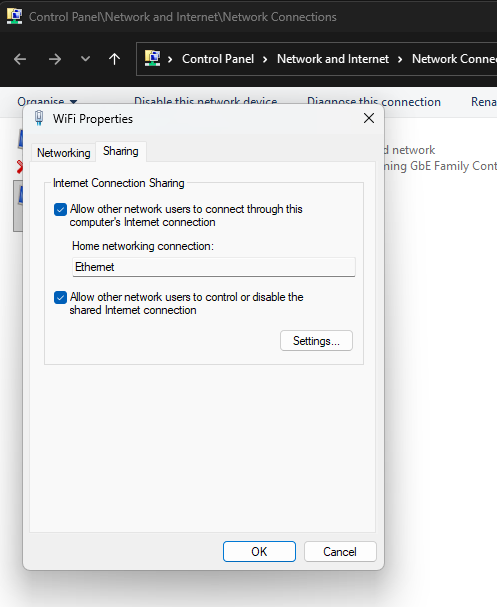
- Right-click the adapter that connects your PC to the internet, such as Wi-Fi, then select Properties and open the Sharing tab. Check Allow other network users to connect through this computer’s Internet connection. Under Home networking connection, choose the Ethernet adapter connected to your PS4, then click OK.
- On the PS4, go to Settings → Network → Set Up Internet Connection → Use a LAN Cable → Easy. Once connected, check the new address in Settings → System → System Information and use it to pair your PS4 again in CUSA+.